
Appearance
Orders
The Orders page gives you a unified workspace to manage, search, print, download, and email document files for all completed store transactions.
Key Capabilities
- Fast Document Actions: Print, export PDF files, or trigger invoice emails directly from the order table.
- Comprehensive Search & Filtering: Filter orders by multiple attributes to quickly locate specific transactions.
- Column Customization: Control which columns appear in your orders table to match your operational workflow.

Search and Filter Orders
Locate orders swiftly using the global search bar or targeted status filters:
- Global Search: Search by Order Name (e.g.,
#1007), Customer Email, PO Number, or Product SKU. - Order Status: Filter by open, closed, or canceled orders.
- Payment Status: Filter by payment conditions such as Paid, Pending, Refunded, or Partially Paid.
- Fulfillment Status: Filter by Fulfilled, Unfulfilled, or Partially Fulfilled.
- Return Status: Filter orders with active return requests or completed returns.
- Date Range: Filter orders placed within a custom timeframe.
Individual Order Actions
Each row in the orders table includes quick-action buttons on the right side:
Print Order Documents
You can quickly print any document type for a specific transaction directly from the order list.
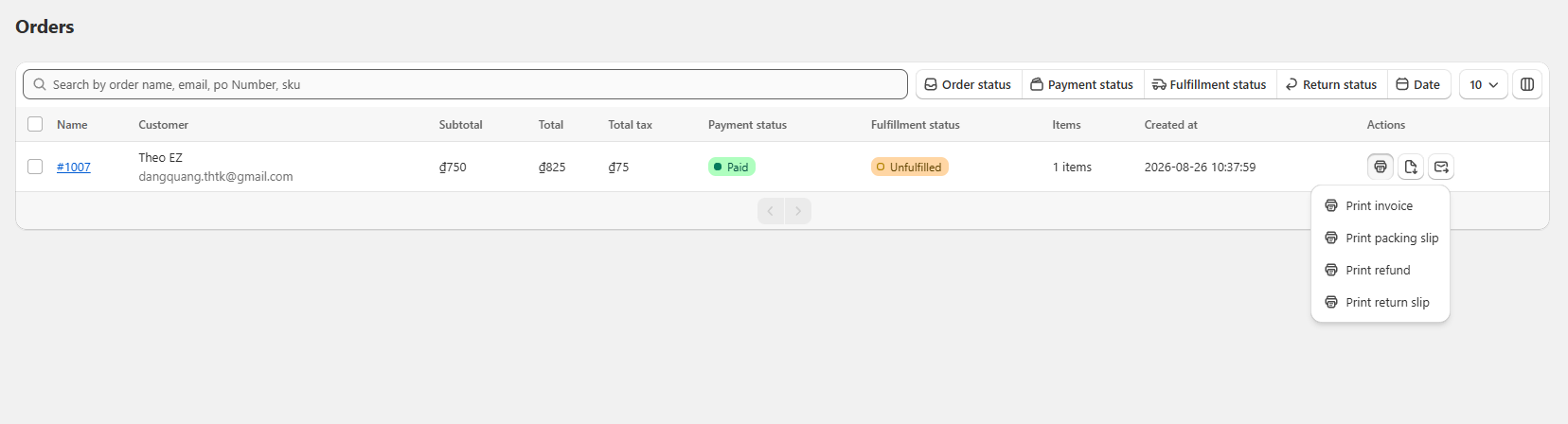
How to Print a Document
- Go to Orders from the left navigation menu.
- Locate the order you want to process.
- In the Actions column on the right, click the Printer icon.
- Select the document type you wish to generate from the dropdown menu:
- Print invoice: Generate and print the standard commercial tax invoice for the transaction.
- Print packing slip: Print the itemized fulfillment slip used for warehouse packing and parcel verification.
- Print refund: Print a credit memo or refund receipt for returned/canceled items.
- Print return slip: Print a return authorization form to include in return shipments for customer exchanges.
- The document opens directly in your browser's native Print Preview dialog.
Print Configuration & Best Practices
Before sending the document to your physical printer or exporting it, verify the following settings on the right panel to ensure the best layout quality:
- Destination: Choose your connected physical printer, or select Save as PDF / Microsoft Print to PDF to export a local copy.
- Paper size: Select the appropriate paper dimension matching your template setup (e.g.,
A4,A5, orLetter). - Pages per sheet & Margins: Keep Margins set to Default (or None) to avoid unwanted content clipping.
- Background graphics (Important): Check the box Background graphics under Options. This ensures that background colors, colored table headers, and badges render properly.
- Headers and footers: Leave this box unchecked to prevent the browser from adding extra default URLs, dates, or page numbers to your document borders.
Click Print to complete the process.
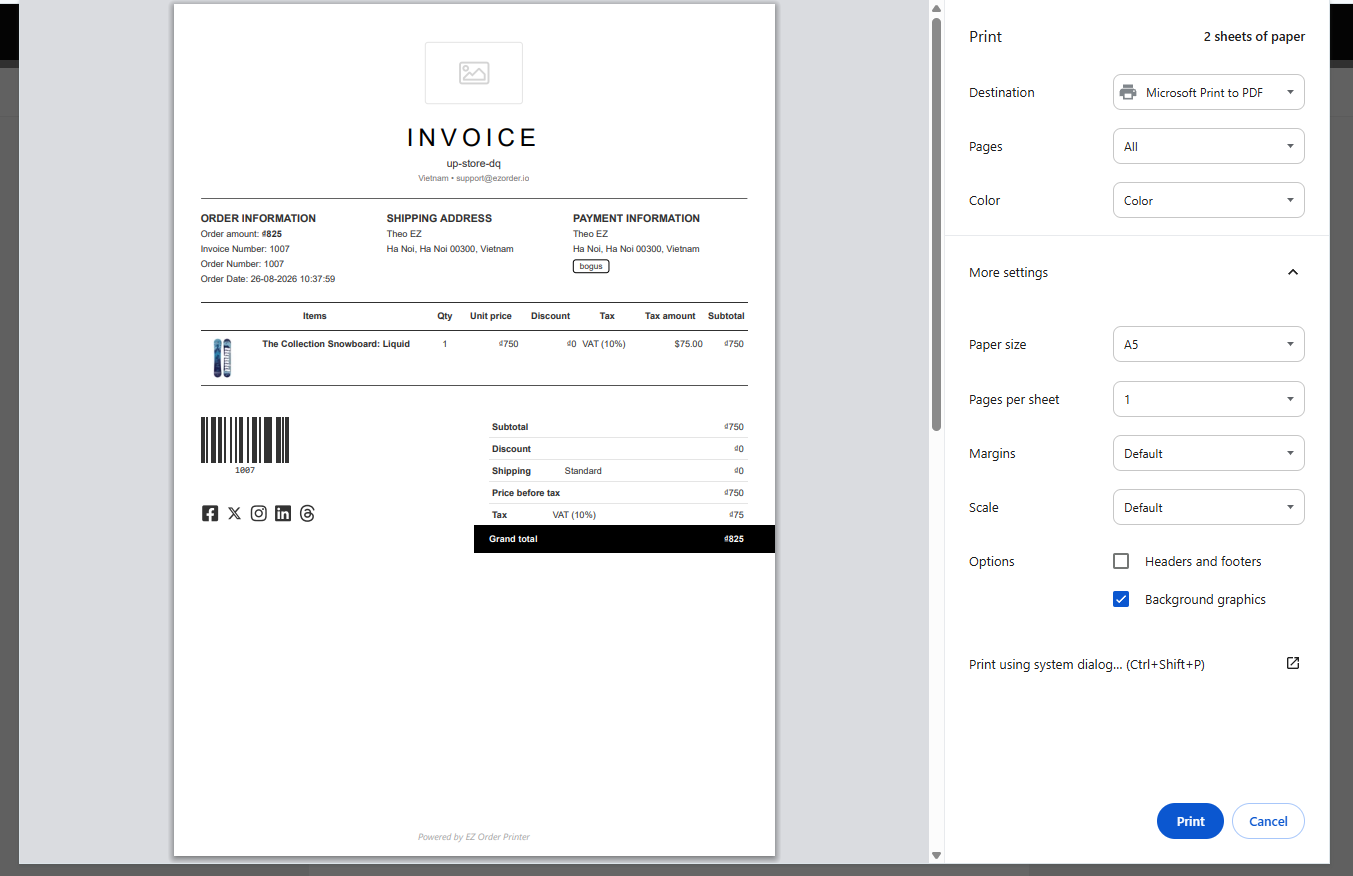
Table Display Settings
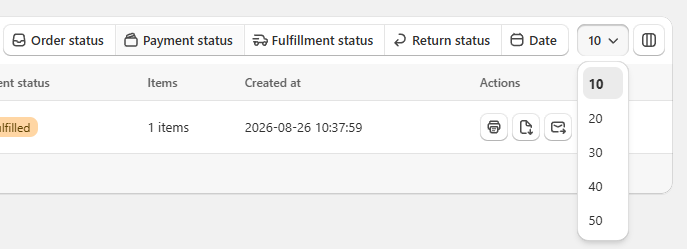
- Pagination / Page Size: Select how many orders display per page (e.g., 10, 20, 50 rows) using the dropdown on the top right.
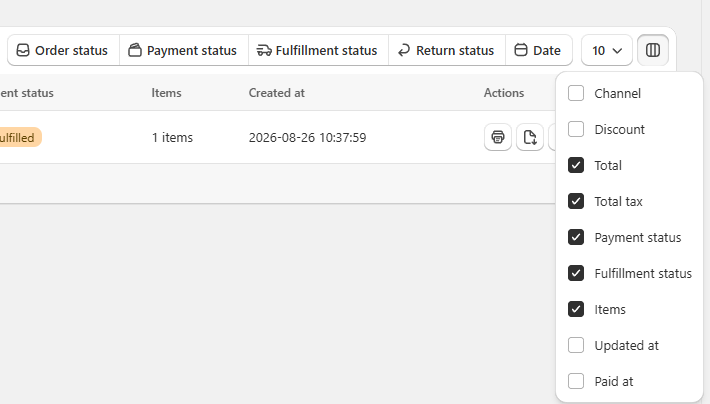
- Column Visibility: Click the column layout icon (next to page size) to toggle visibility for columns like Subtotal, Tax, Created/Updated dates, or Sales Channel.
Pro Tip & Best Practices
- Enable Background Graphics: Always ensure Background graphics is checked in your browser's print dialog so that brand colors, badges, and dark headers render correctly.
- Filter Before Printing: Use filters (e.g., Fulfillment status: Unfulfilled) to quickly isolate specific order batches before processing invoices or packing slips.
- Keep Layouts Clean: Uncheck Headers and footers in print options to avoid default browser timestamps and URLs on your documents.