
Appearance
Template Overview
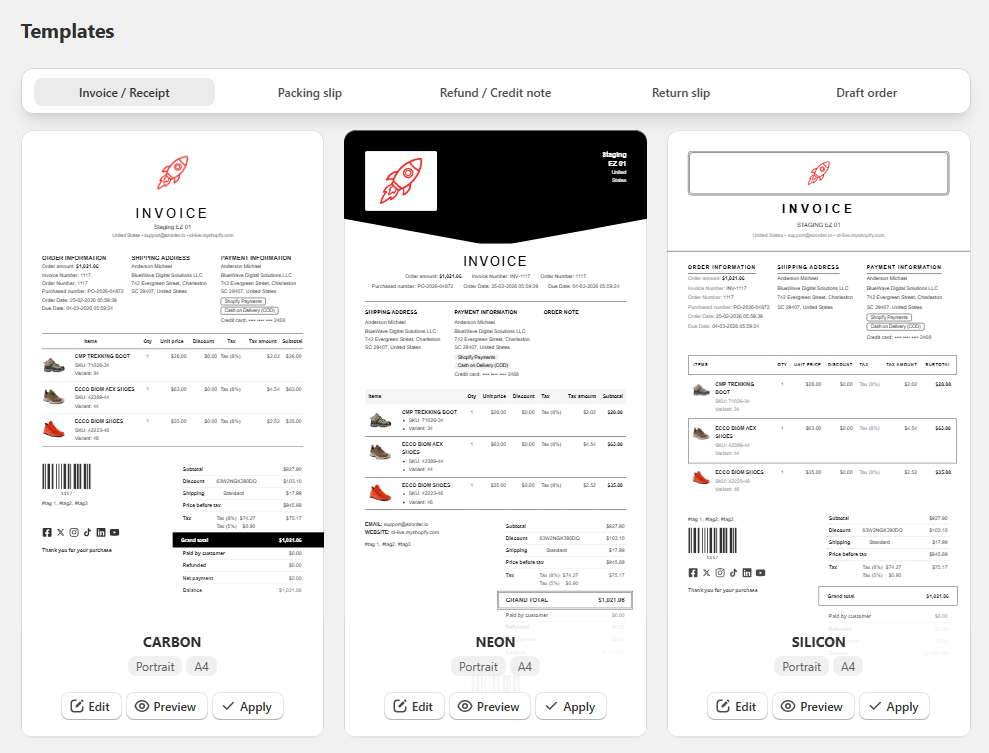
The Templates page is your central document library in EZ Order Printer, allowing you to explore ready-made designs, select active templates for each document type, and preview or open the visual editor.
Document Types
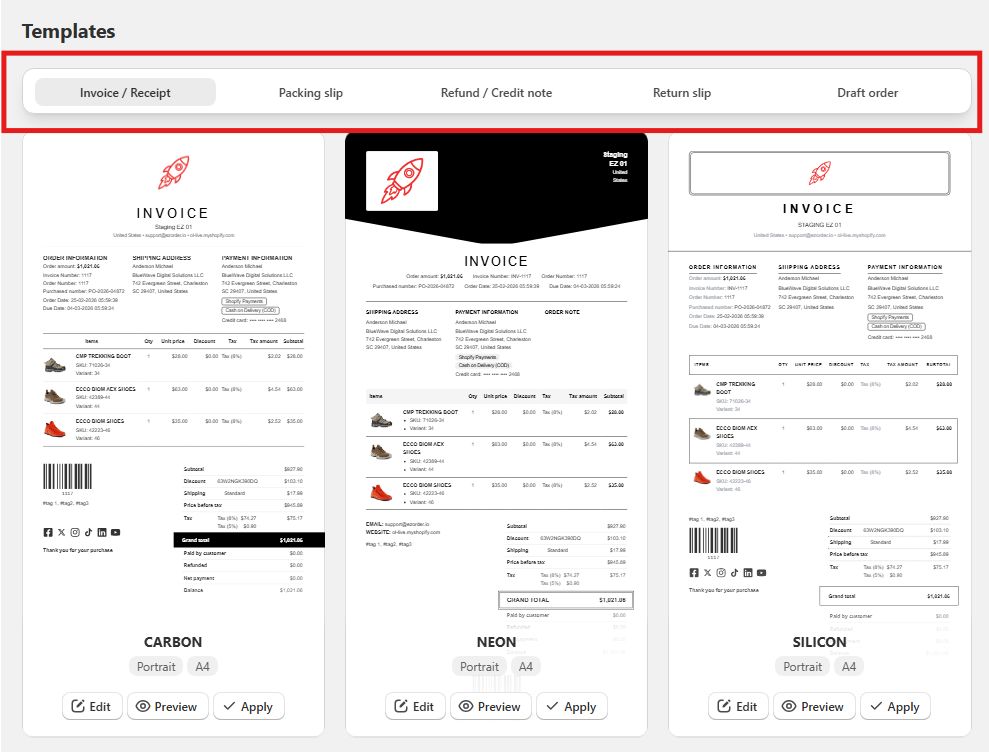
Use the top tab navigation to switch between different document categories:
- Invoice / Receipt: Standard commercial invoices and sales receipts for completed customer orders.
- Packing slip: Fulfillment documents highlighting product line items, quantities, and delivery notes for warehouse packaging.
- Refund / Credit note: Official credit receipts issued for returned items or refunded orders.
- Return slip: Return merchandise authorization slips included with shipments for customer return requests.
- Draft order: Quotations and proforma invoices tailored specifically for manual and pending draft orders.
Template Card Overview
Each design template in the gallery displays key layout attributes and quick action buttons:
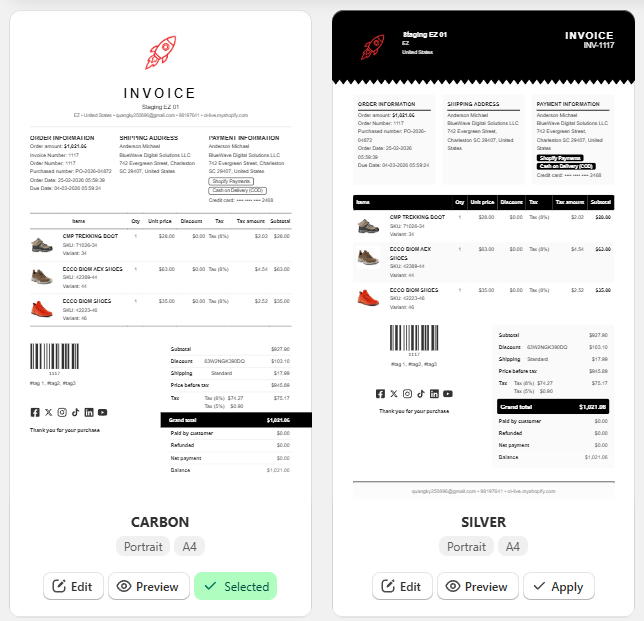
- Template Name & Orientation: Shows the theme name (e.g., Carbon, Silver, Gold), page orientation (Portrait or Landscape), and default paper dimension (A4, Letter).
- Selected Badge: The currently active template for that document type is marked with a green Selected badge.
How to Apply a Template
To set a new default design for any document type:
- Select the desired document category from the top tab bar (e.g., Invoice / Receipt or Packing slip).
- Browse through the available layout themes.
- Click the Apply button at the bottom of your preferred template card.
- The template status immediately switches to Selected, making it the active layout used across your PDF exports, admin printing, and automated emails.
How to Preview a Template
To check how a template looks with realistic mock order data before applying it:
- Locate the template card you want to inspect.
- Click the Preview button.
- A preview modal opens showing all typography, tables, barcode placements, and branding elements.
How to Edit and Customize a Template
To adjust layout settings, colors, company branding, or dynamic text fields:
- Find the template card you wish to modify.
- Click the Edit button.
- You will be redirected directly to the Template Editor to customize your design.
Pro Tip
You can customize and save different layouts for each document category independently (e.g., use a modern Carbon layout for Invoices while using a minimalist Silver layout for Packing Slips).